RDA System User Manual
A complete, user-friendly guide for applicants using the RDA online service workflow. This manual explains the journey from starting an application and uploading documents through payment, dashboard access, application tracking, officer communication, approval, and certificate download.
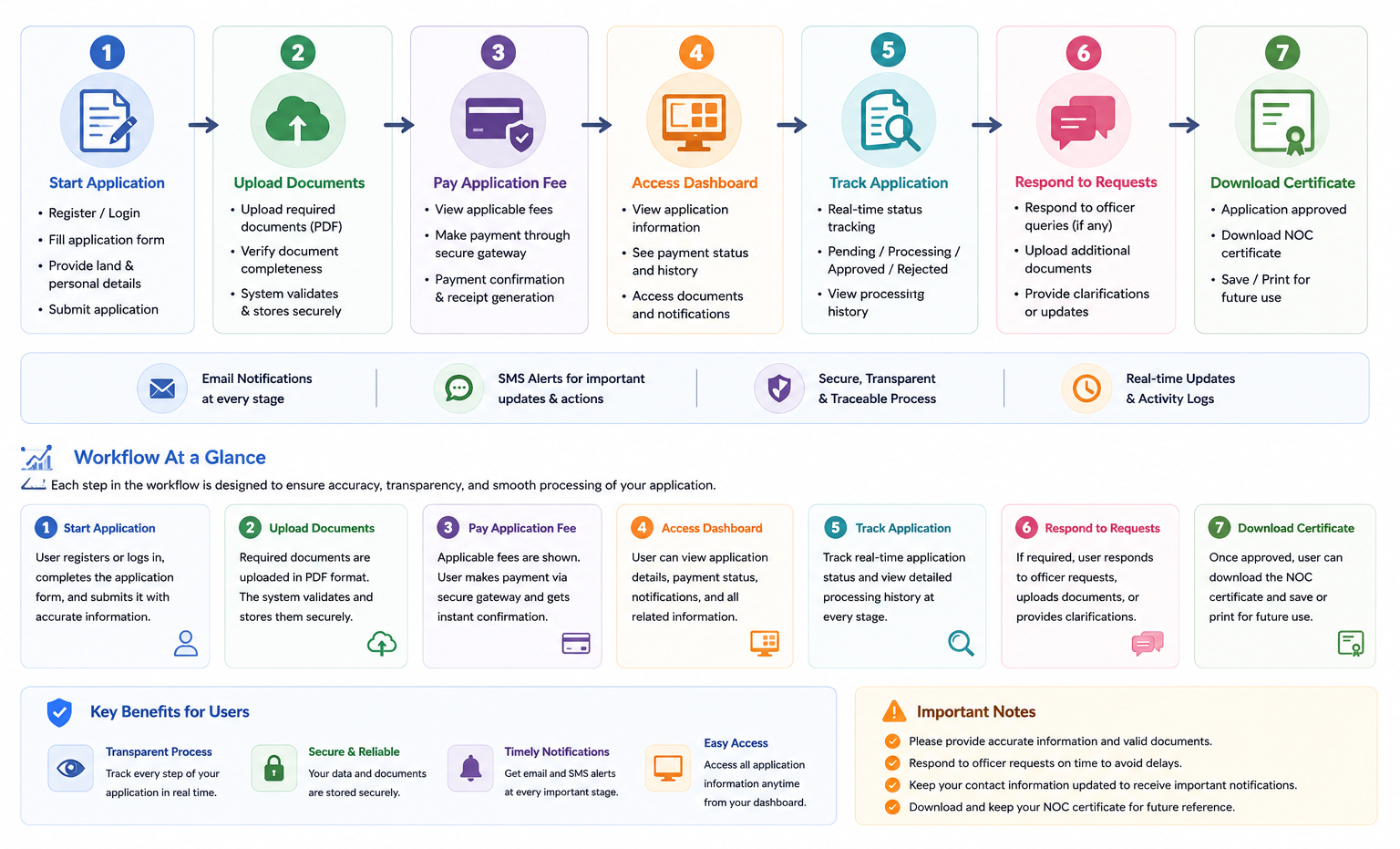
Quick Start for Applicants
Choose Service
Start the appropriate NOC, authorized consultant, or market application.
Prepare Documents
Keep ownership, land, identity, map, sketch, and supporting documents ready.
Complete Form
Enter the requested information carefully and continue after validation.
Upload Files
Upload the required documents in the accepted PDF format.
Pay Fee
Review the system-calculated fee and select an available payment method.
Access Dashboard
Use the credentials sent after payment verification to log in.
Track Progress
Check status, history, officer remarks, notices, and workflow progress.
Download Result
After approval, download the final certificate and verify it using the QR code.
Complete User Workflow
The RDA user workflow provides structured interaction between applicants and officers. Users submit information and supporting documents, complete the required payment process, monitor application progress, respond to requests, and receive the final approved certificate.
1. Application
Fill out the appropriate application form and submit accurate information.
2. Verification
Submitted information and documents move through the required review process.
3. Payment
Complete the required application fee through the available payment process.
4. Dashboard
Use the dashboard to view applications and monitor progress.
5. Communication
Review officer requests, additional documents, fees, or official instructions.
6. Approval
After successful processing, access the final approved certificate.
Required Documents
All applications should include the required legal and supporting documents. Incomplete submissions may result in rejection or delay.
Core Documents
- Registered Deed / Ownership Document
- Khatian / Mutation (Namjari)
- Land Development Tax Receipt
- National ID / Birth Certificate
Land & Location Documents
- Mouza Map with marked plot
- Land Location Sketch / Diagram
- Additional supporting documents when required
- Readable PDF copies for upload
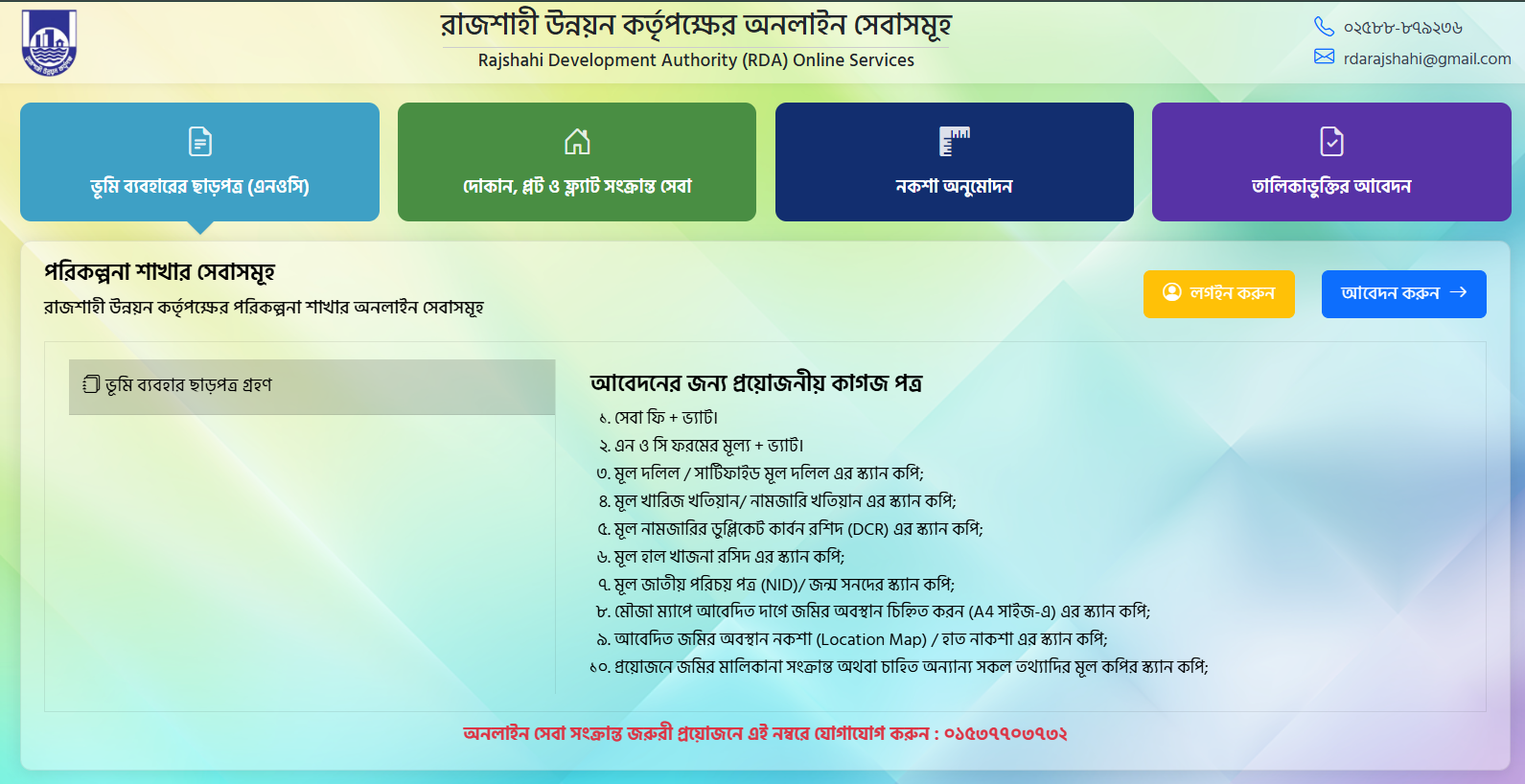
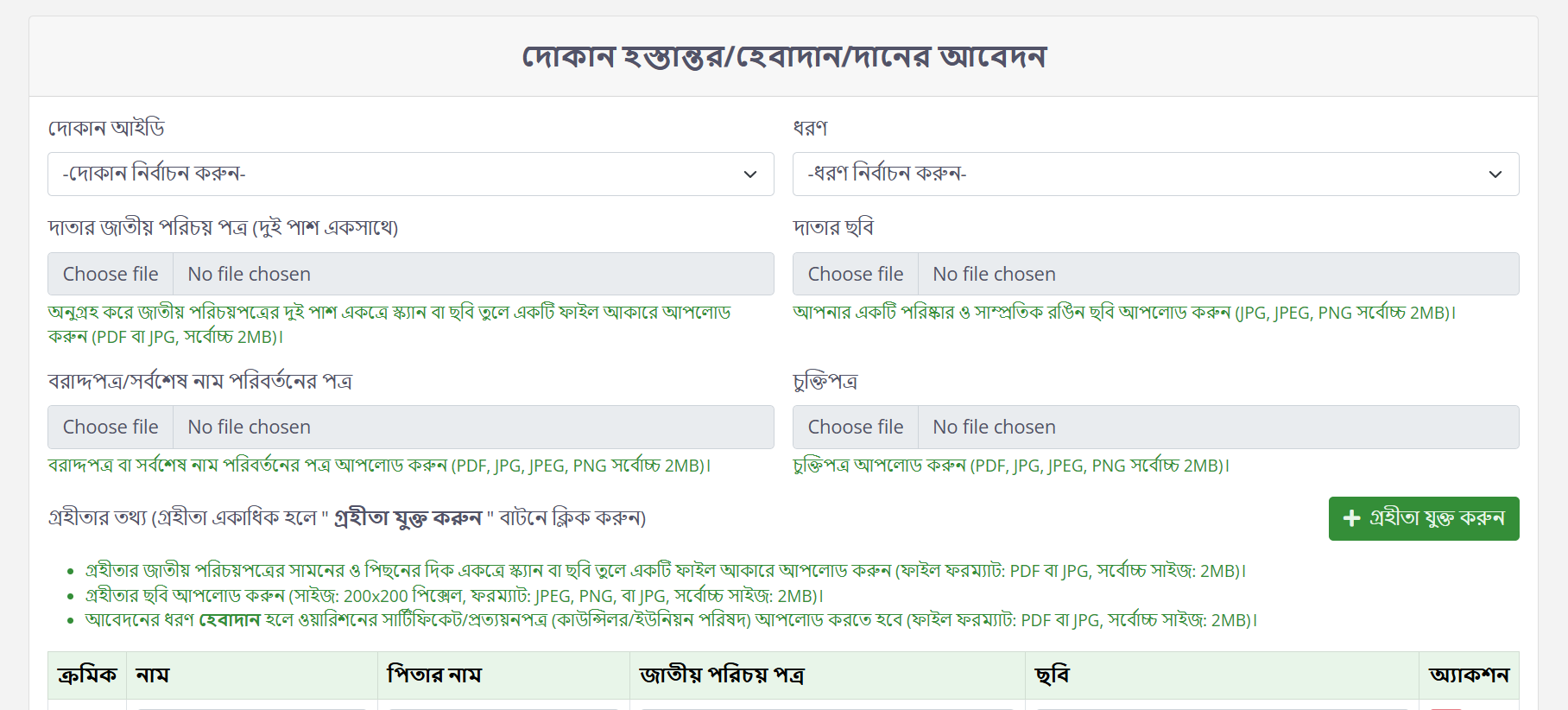
Step 1: Start Application
Application Steps
- Visit the official RDA online service portal: https://services.rdarajshahi.gov.bd/noc-form
- Click Apply Now.
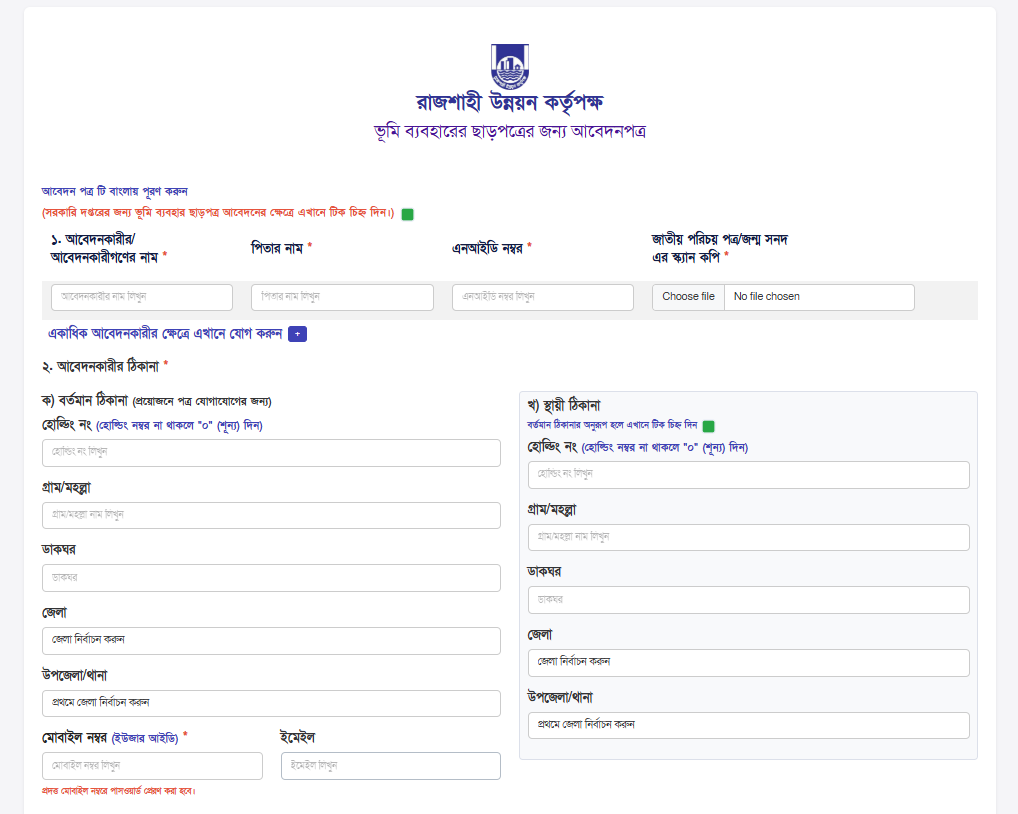
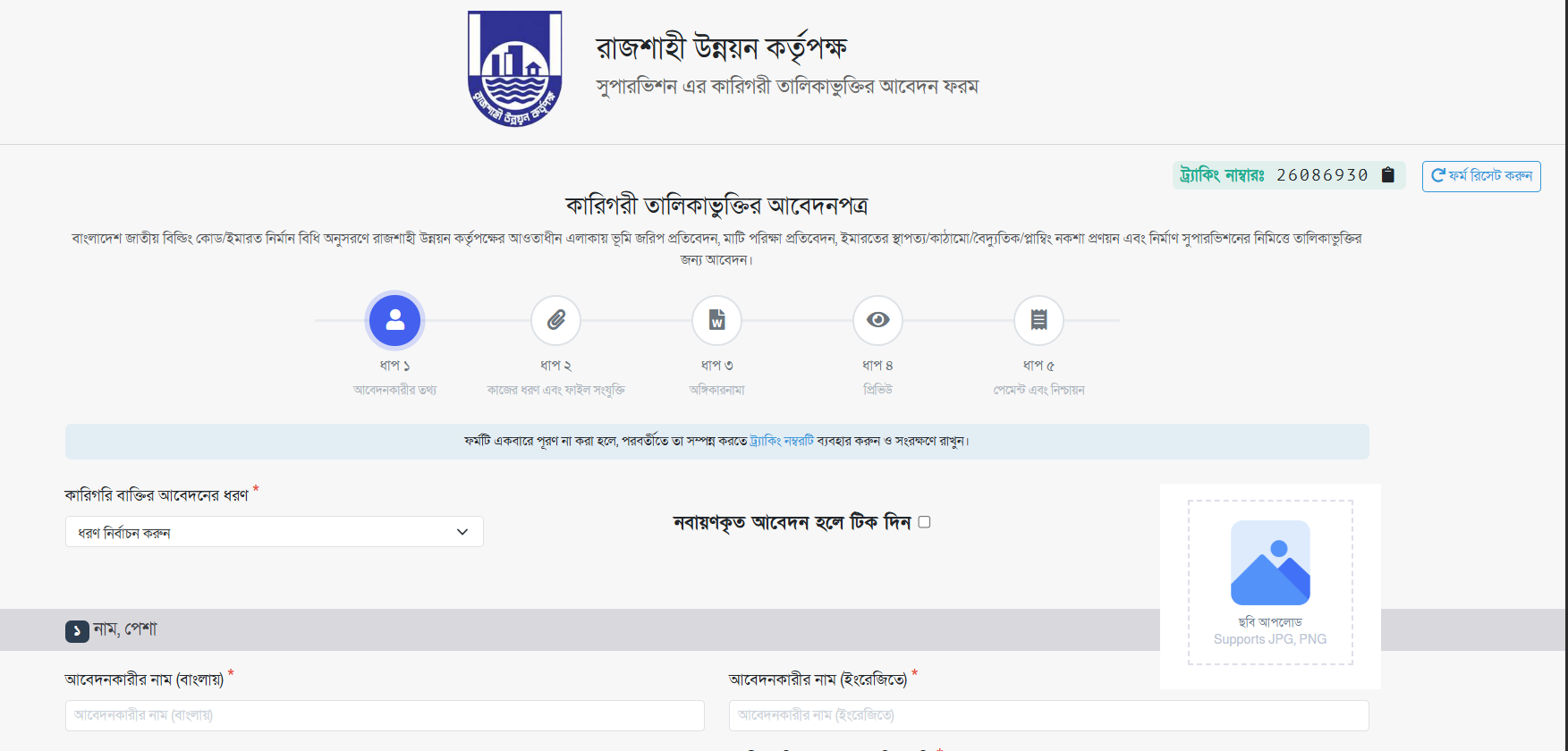
- Complete the application form carefully.
- Provide accurate information and continue after validation.
- Upload the required supporting documents.
Step 2: Application Fee Payment
Payment Preparation
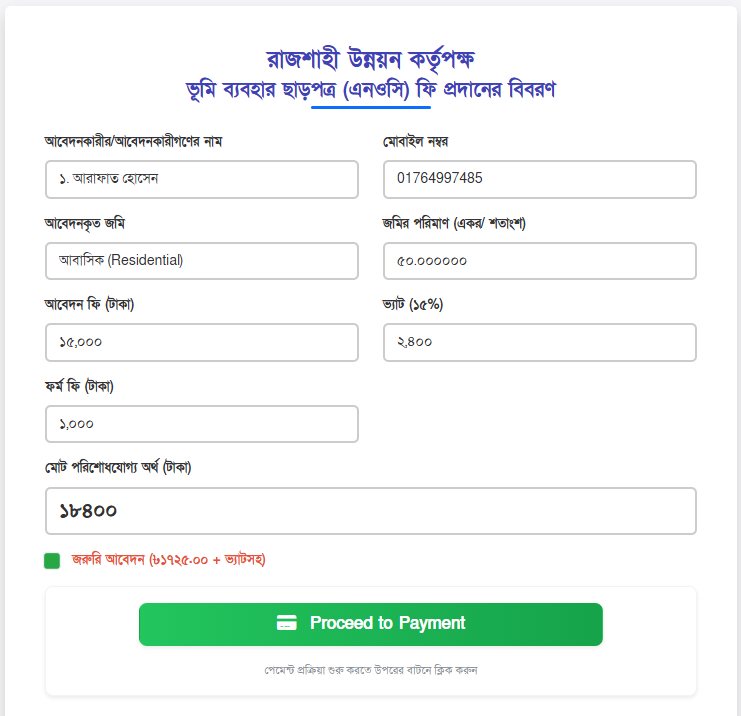
- The system automatically calculates the applicable fee based on application information.
- Review the application details and calculated amount carefully.
- Select an available payment method.
- Click Proceed to Payment.
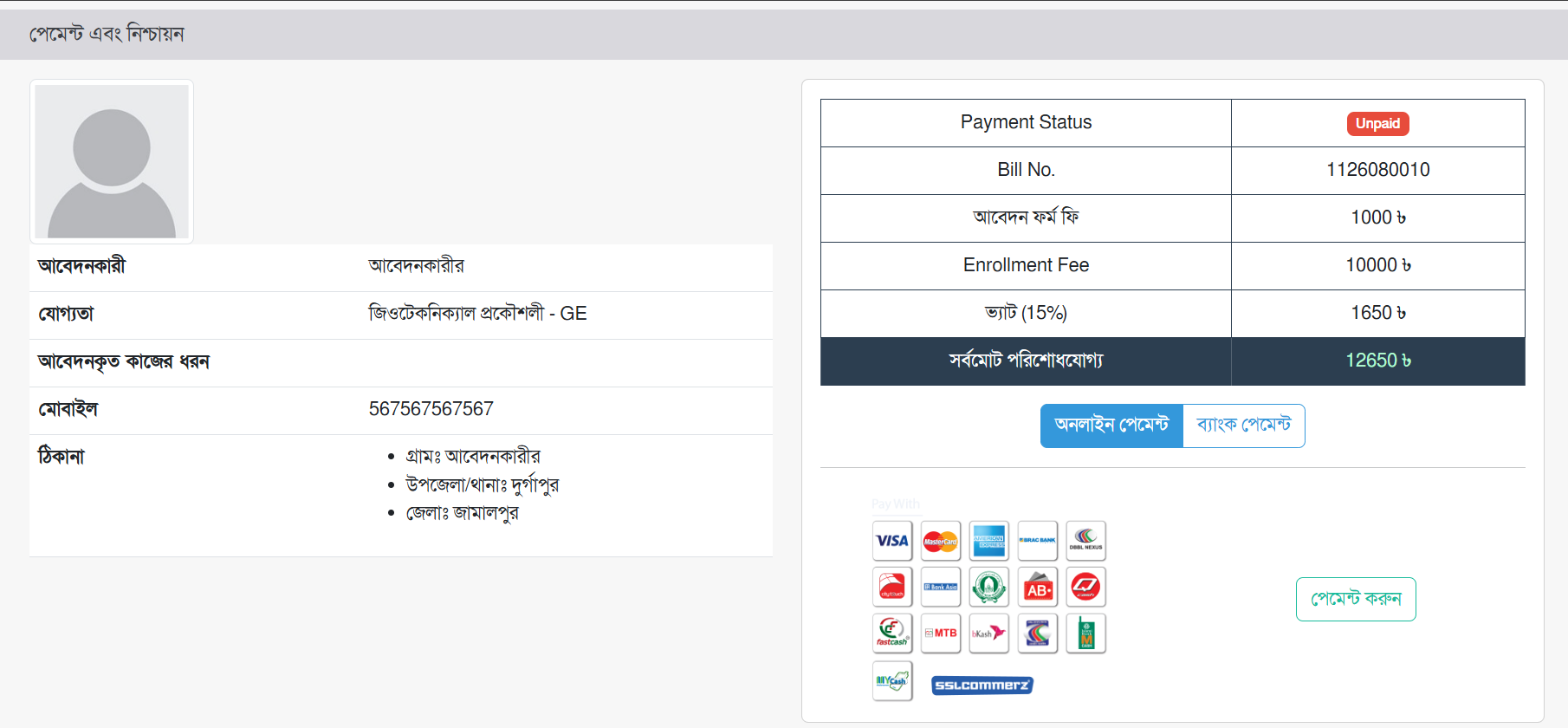
Payment Methods
- Online payment through the available payment gateway.
- bKash / Rocket where available.
- Bank payment / manual payment.
- SSLCommerz gateway where available.
IF Bank Payment / Manual Payment
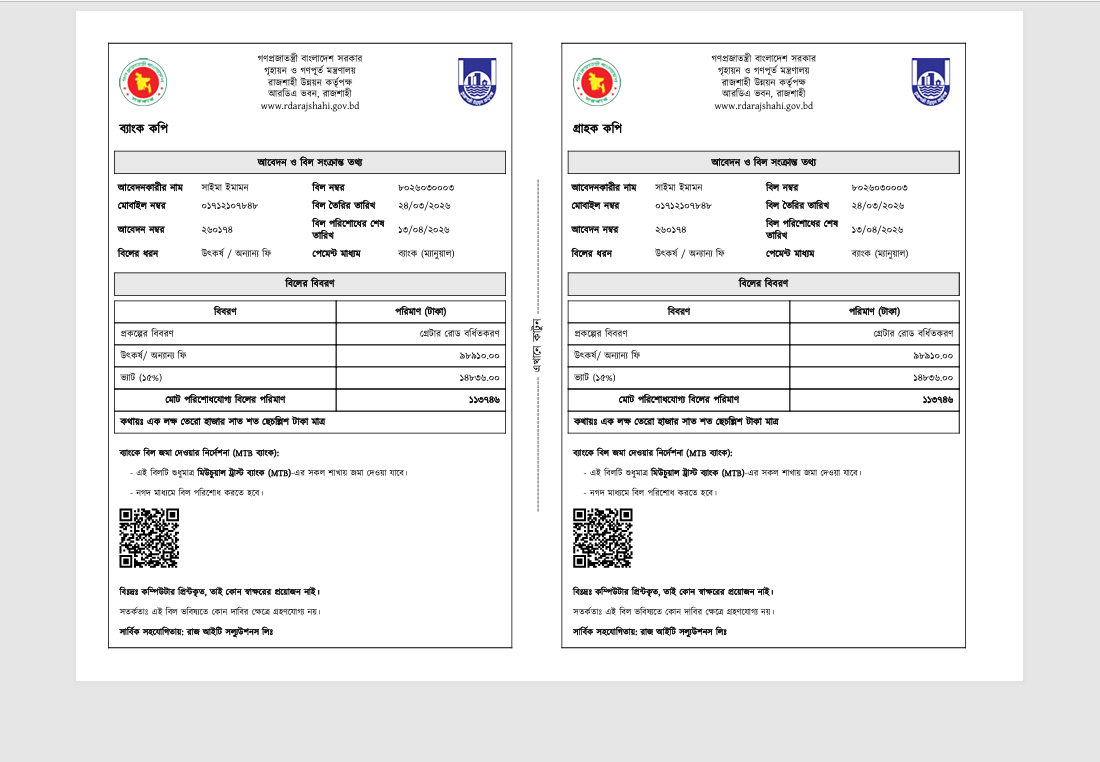
- Select Bank Payment from the available payment methods.
- Generate the payment instruction using the invoice/reference information.
- Visit the designated bank branch and complete the payment.
- Collect the bank deposit slip or transaction receipt.
- Submit payment details such as Transaction ID, Date, and Amount.
- Upload a scanned copy of the bank receipt when required.
- The authority verifies the payment manually.
- After verification, the application payment/status is updated.
- Confirmation is sent to the applicant.
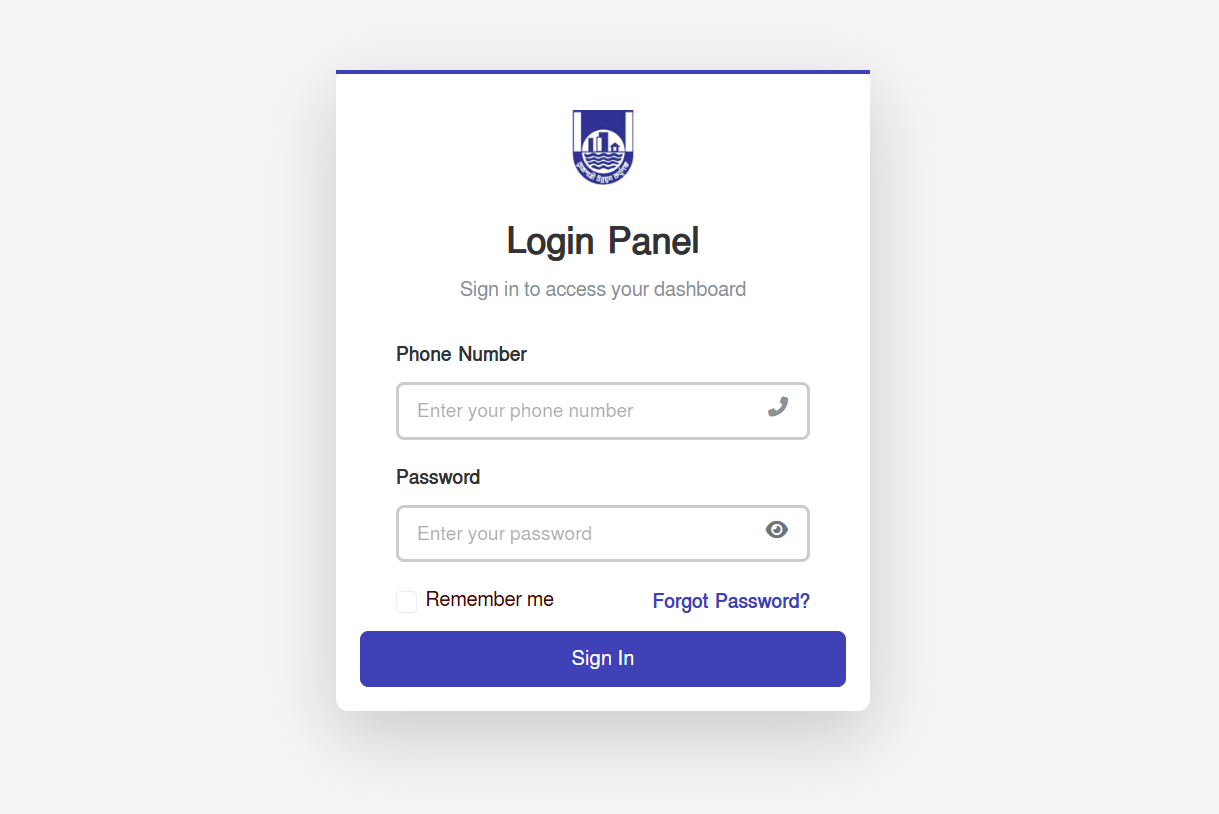
Step 3: Login to User Dashboard
Login Process
- Use the credentials sent after successful payment verification.
- Enter the required login information.
- Authenticate and access the user dashboard.
Account Safety
- Keep your login credentials private.
- Keep your Application ID/reference information safe.
- Use the official RDA service portal for application activities.
Step 4: User Dashboard
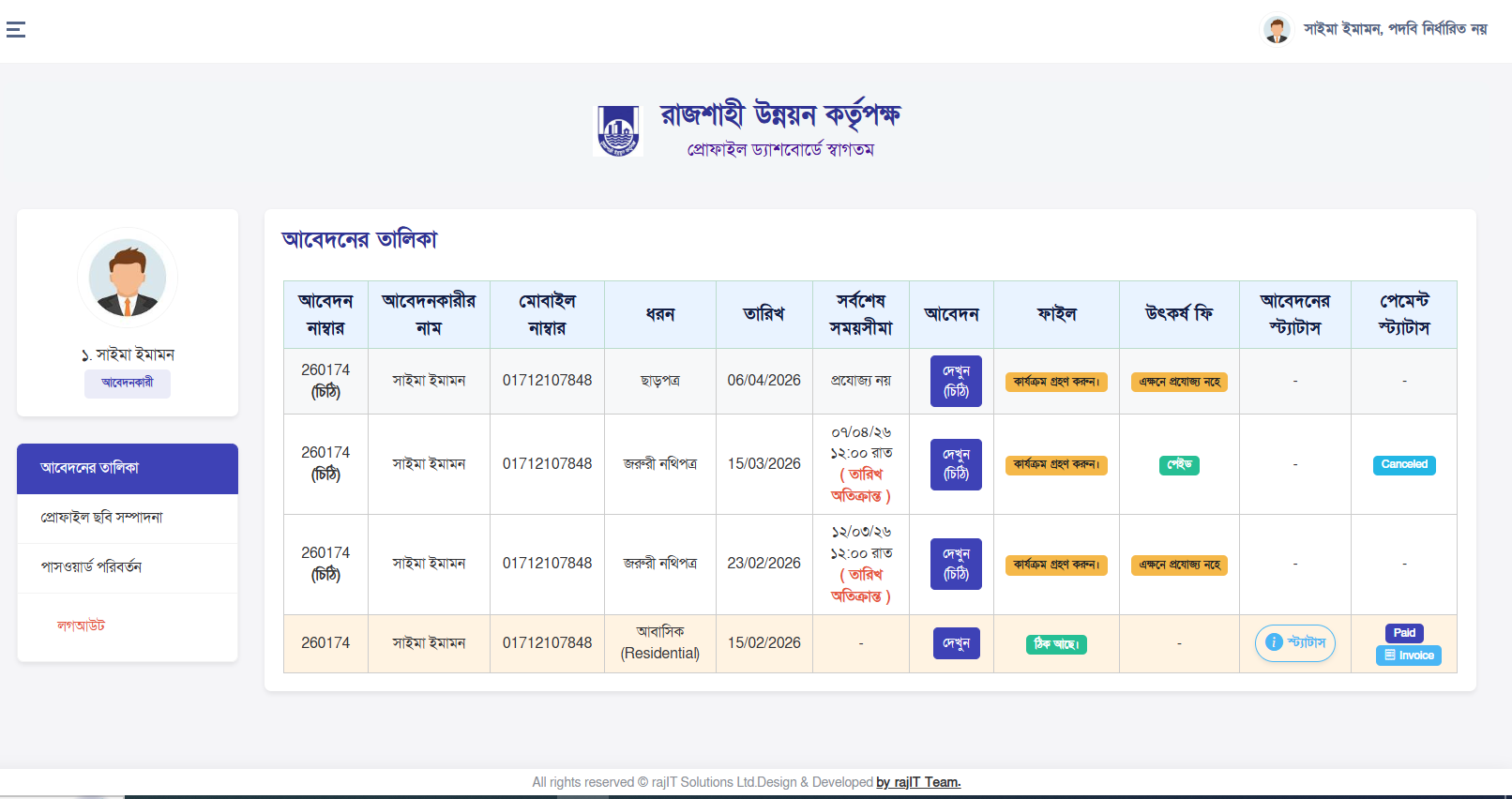
The user dashboard provides a centralized view of submitted applications, application statuses, workflow progress, and relevant system notifications.
Application Status
View the current status of submitted applications.
Workflow Progress
Monitor progress through the application processing stages.
Application History
Access detailed information and previous workflow activity.
Step 5: Application Details & Tracking
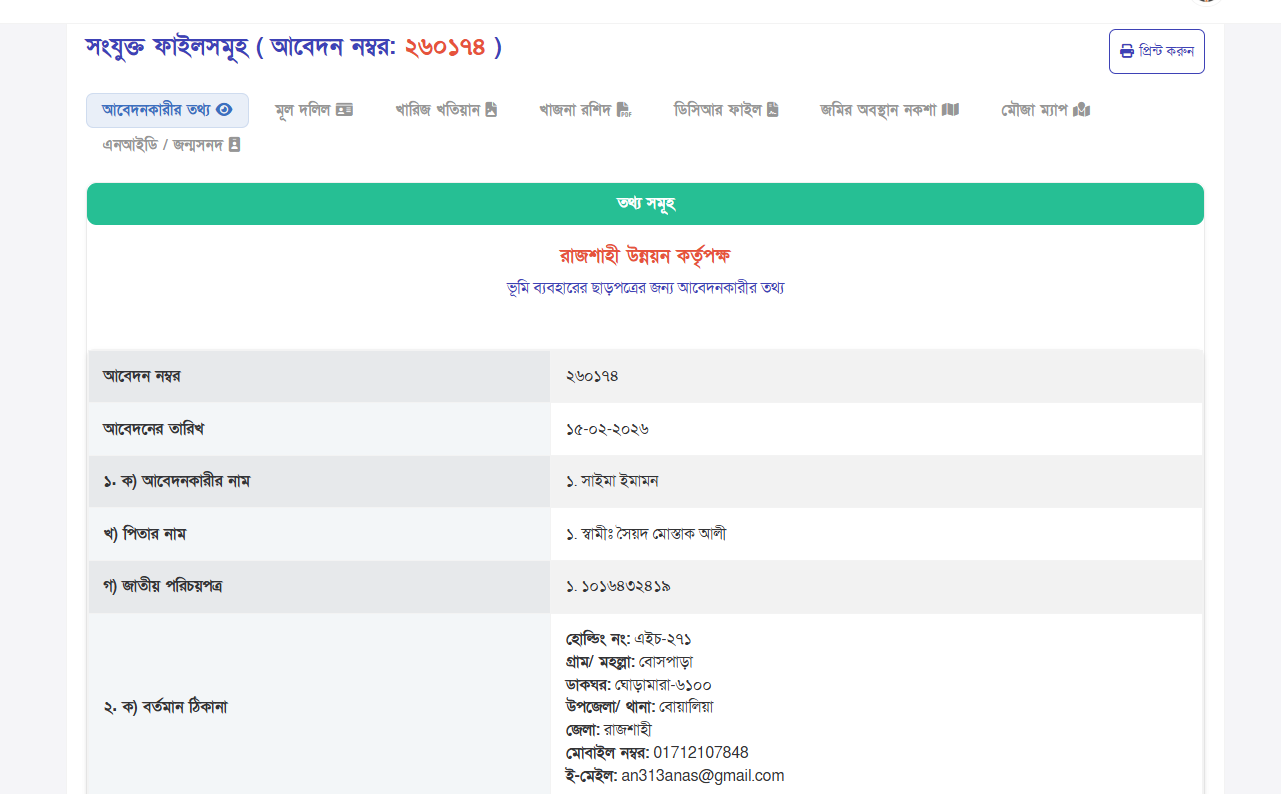
What You Can Review
- Full application information.
- Application copy for download or printing.
- Officer remarks and status updates.
- Approval progress.
Application Status Reference
| Status | Meaning in the workflow |
|---|---|
| Pending | Application is awaiting the next processing/review action. |
| Processing | Application is under processing/review. |
| Approved | Application has been approved and the final result can be accessed as applicable. |
| Rejected | Application has not been approved through the processing workflow. |
Officer Communication System
During application processing, officers may communicate with applicants when additional information, documents, fees, or instructions are required.
📎 Additional Documents
Review and respond when additional documents are requested.
💰 Additional Fee
Check official communication if an additional fee is required.
📢 Official Instructions
Read notices or instructions provided by the processing authority.
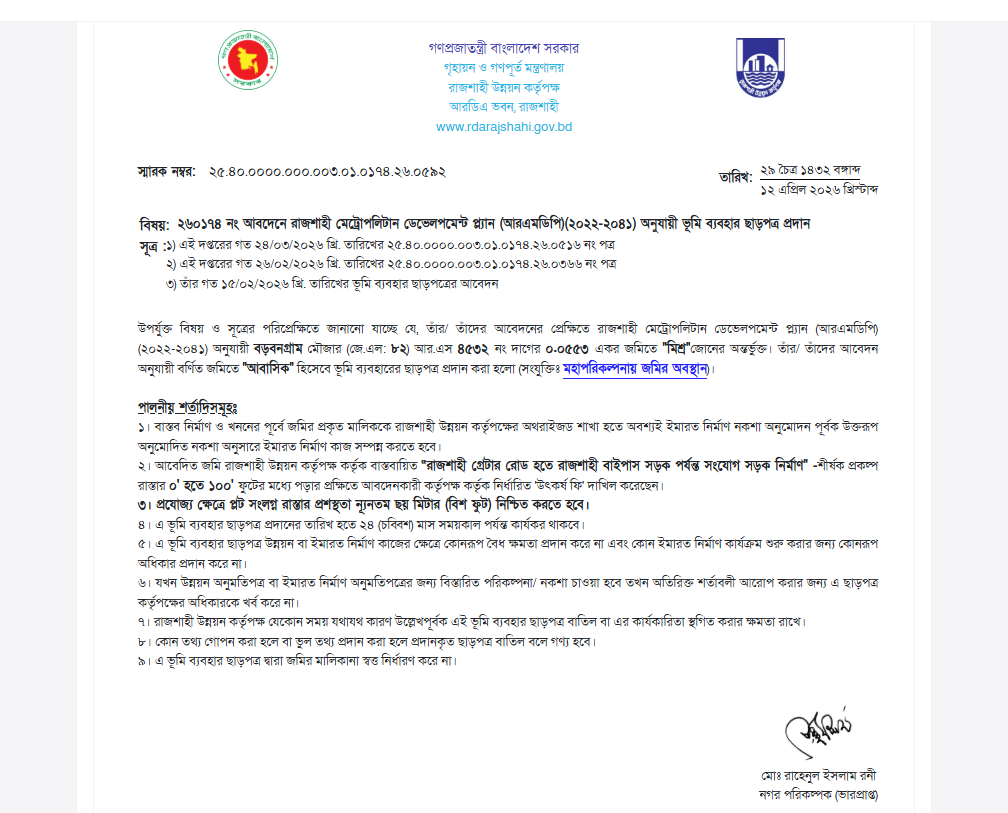
Final Approval & Certificate
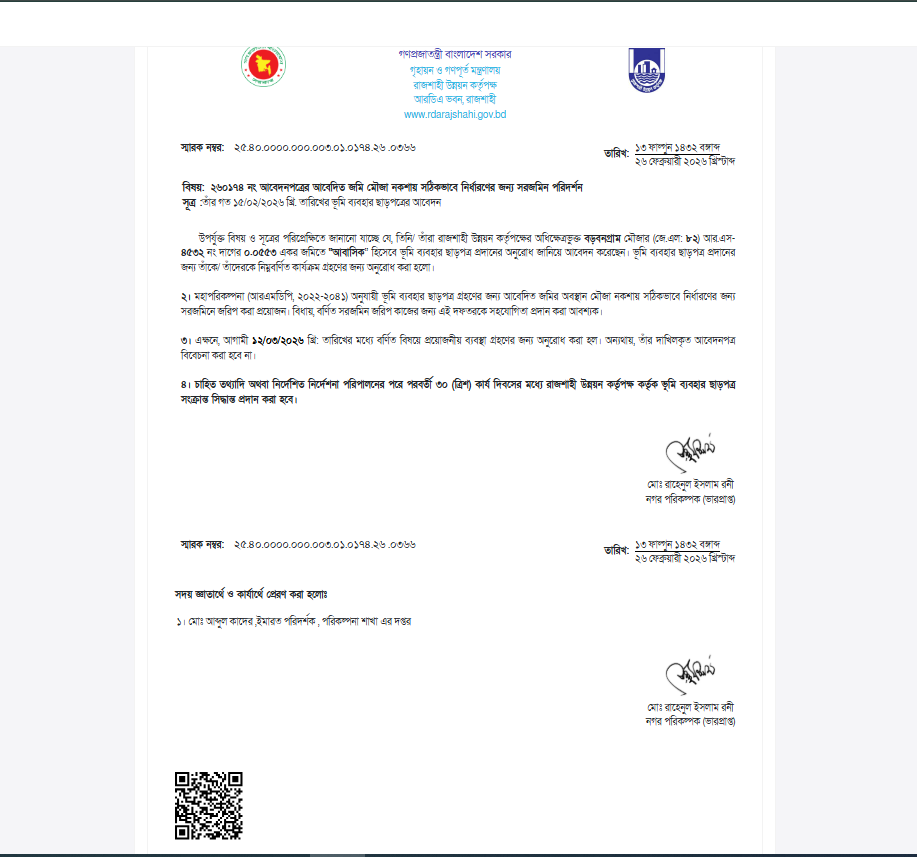
Final Steps
- Application is reviewed and processed by the authority.
- After approval, access the final certificate.
- Download the approved certificate in PDF format.
- Verify the certificate using the QR code validation feature.
Certificate Handling
- Keep a safe copy of the downloaded certificate.
- Use the certificate's QR code for verification when required.
- Retain relevant application/reference information.
Applicant Final Checklist
Before Submission
- All application information is accurate.
- Ownership and land information is correct.
- Required documents are ready.
- Documents are readable and in PDF format.
- Mouza map and land location sketch are prepared where required.
After Submission
- Keep the Application ID safe.
- Keep payment/reference details safe.
- Check application status regularly.
- Read officer communication and notices.
- Respond to requests as soon as possible.
Frequently Asked Questions
What should I do before starting an application?
Prepare the required legal, ownership, land, identity, map, sketch, and supporting documents and make sure the information is accurate.
How is the application fee determined?
The documented workflow states that the system automatically calculates the applicable fee based on application information, including land type, size, and zoning category where applicable.
Can I pay through a bank?
Yes. The manual-payment workflow allows an applicant to generate payment instructions, complete the bank payment, retain the receipt, submit transaction details, and wait for authority verification.
When can I access the user dashboard?
The documented workflow states that login credentials are sent after successful payment verification, after which the applicant can access the user dashboard.
Where can I check my application status?
Use the user dashboard to monitor application status, workflow progress, history, remarks, and relevant notifications.
What if an officer requests another document?
Review the officer communication or notice, provide the requested information or document through the applicable system process, and continue monitoring the application.
How do I get the final certificate?
After the application is approved, the final certificate can be downloaded in PDF format and verified using its QR code.
What should I do if I need assistance?
Use the support contact information provided in the Support & Contact section of this guide.
Important Instructions
- All information must be accurate and verified.
- Only PDF-format documents are accepted according to this guide.
- Incomplete applications may be rejected or delayed.
- Keep your Application ID safe.
- Keep payment and transaction information safe.
- Respond promptly to officer requests.
- Keep copies of submitted documents and payment receipts for your records.
Support & Contact
📞 Helpline
02588-879236
irdarajshahi@gmail.com
🏢 Office
RDA Bhaban, Rajshahi-6203